 Find in Files Button
Find in Files (Edit Menu)
The Find in Files selection of the Edit menu searches for specified text in matching source files in the program, project, or directory specified. The results of the search are displayed in the selected output Find Window.
To quickly locate text in the source files, click the Find in Files button on the toolbar or use the Ctrl+F3 key sequence.
Find in Files Button
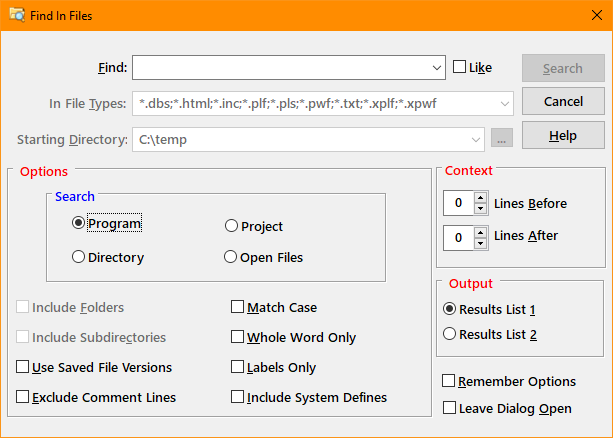
Find in Files Dialog Items
Type or insert the information you want to find.
The search string is a Like expression.
Specifies the names and extensions of source files to search. Multiple specifications are delimited with a semi-colon or a comma (i.e., *.jpg;*.gif,*.bmp). When searching the current program or project, this field is disabled.
Identifies the directory containing the files to be searched. This field is only active if the search type is "Directory".
Instructs the IDE to also search files in any defined project folders. This option is only enabled when doing a "Project" search.
Finds only those occurrences with the exact combination of uppercase and lowercase letters specified in the What box.
Finds occurrences of strings that are white space (line feed, tab or space) delimited.
Finds only those occurrences that begin in column one of the editor.
Instructs the IDE to also search the system inclusion files plbequ.inc, plbmeth.inc, admequ.inc, plbapi.inc, plbreflect.inc, and plbstdlib.inc.
Instructs the IDE to store the search parameters before closing the window.
Instructs the IDE to not close the Find In Files window after searching for files.
Like Expressions
Like expressions allow matching records . Operators allowed within expressions are:
|
Operator |
Meaning |
|
_ |
Underscore character matches any one character. |
|
% |
Percent character matches zero or more characters. |
|
\ |
Backslash character is the forcing character that forces the comparison of the next character regardless of the character value. |
|
NOCASE |
The NOCASE is a unary operator that eliminates the case sensitivity when comparing each character of the left operand to the characters in the right operand in a string expression. The NOCASE operator is ignored for any numeric expression operations. |
Note in the examples below spaces are not necessary for evaluation of the expressions. However, it does aid in reading the program and understanding the logic. See the examples below for further information.
Expression examples:
|
|
|
|
|
|
|
|
|
|
|
|
|
|
|
|
|
|
|
|
|
|
|
|
|
|
|
|
|
|
|
|
|
|
|
|
The above examples show the use of the LIKE and NOCASE operators in expressions.
See also: Replace, Using the Editor


 |