Using the Editor
Typing
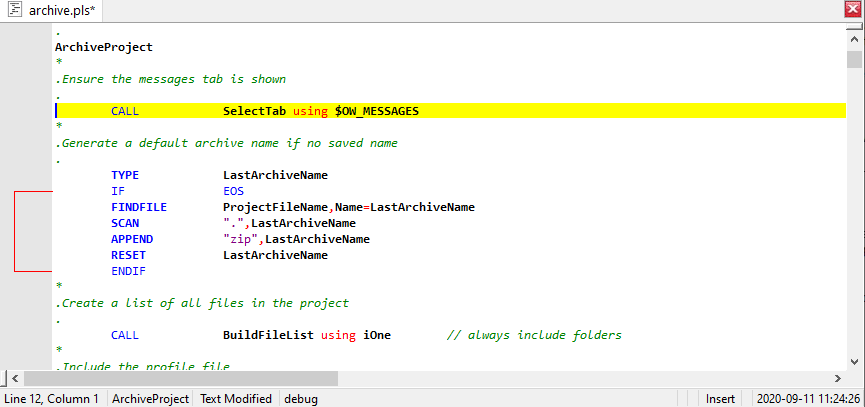
When you open a source file in the IDE, it appears and is ready for you to start editing in the main window of the IDE. A blinking vertical bar called the insertion point indicates where code appears when you type. You press ENTER when you want to start a new line. You may delete characters to either the left or right of the insertion point. The cursor is by default a vertical bar. The vertical bar indicates that the editor is in insert mode. By pressing the Insert Key, the cursor will change to a block to indicate overtype or replace mode.
Some code windows contain more text than you may see at one time. To view the code that you cannot see, use the mouse or the keyboard to scroll through the code. You may display scroll bars along the right and bottom edges of code windows, that you may use to move through source code quickly.
Revising
When you want to change something in a code window, you first mark what you want to change. This is called selecting. A common way to select is to hold down the left mouse button and move the mouse pointer over the text you want to select to highlight it.
After you select text, you may delete it from the window, make a copy to insert in a new location, or delete it from its current location and move it elsewhere. You may copy and move text within a window, between windows, and to and from other Windows-based applications.
Auto Complete and Auto Syntax
The Auto Complete and Auto Syntax features of the editor makes writing code much easier with features that can automatically fill in statements, properties, and arguments for you. As you enter code, Auto Syntax displays lists of appropriate choices, statement or function prototypes, or values. The Auto Complete feature may be activated by using the Ctrl+Space key sequence. The Auto Syntax feature is activated by using the Ctrl+H key sequence.
Column Selection
Column selection allows the highlighting of data within a particular column and across a number of lines within the edit. To highlight text using column selection hold the ALT key and drag the mouse up or down.


 |