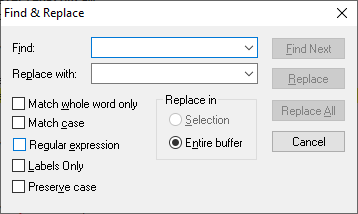
Replace (Edit Menu)
The Replace selection of the Edit menu searches for and replaces specified text in the active source window.
To quickly replace text in the source window, use the Ctrl+R key sequence.
Replace Dialog Items
Type or insert the information you want to find.
Type the text you want to use as replacement text, or paste it from the Clipboard. To delete the text in the Find box from the source, leave the Replace with box empty.
Finds occurrences that are words and not part of a larger word.
Finds only those occurrences with the exact combination of uppercase and lowercase letters specified in the Find box.
Finds only those occurrences that match the regular expression specified in the What string. The regular expression rules are:
Wildcards: ? for any single character, + for one or more characters, * for zero or characters.
Sets of characters: Characters enclosed in square brackets will be treated as an option set. Character ranges may be specified with a (e.g. [a-c]).
Logical OR: Subexpressions may be ORed together with the | pipe symbol.
Parenthesized subexpressions: A regular expression may be enclosed within parentheses and will be treated as a unit.
Escape characters: Sequences such as \t, etc. will be substituted for an equivalent single character. \\ represents the backslash.
Finds only those occurrences that begin in column one of the editor.
Preserves the case of the text being replaced. If the replaced string was capitalized, the new string is capitalized.
Allows replacement in only the selected area or the entire edit buffer.
Locate the next string matching the What string.
Changes the selected text or formatting to the text or formatting in the Replace with box, and then finds the next occurrence.
Finds and replaces all occurrences of the text or formatting in the Find box with the text or formatting in the Replace with box.
Terminate the replacement process.
See also: Find, Using the Editor


 |