Behavior (Tools/Options)
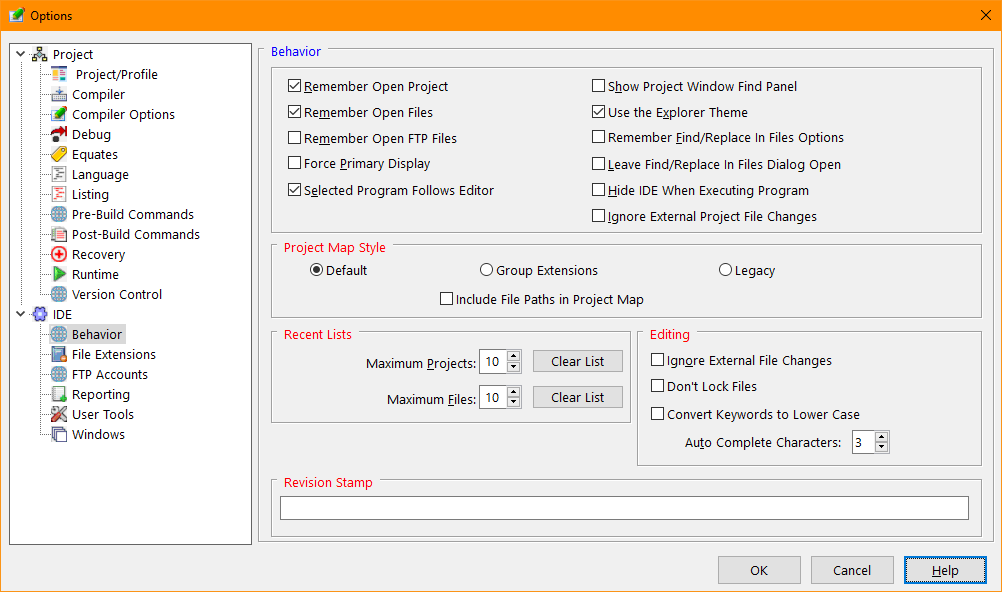
The Behavior tab of the Options dialog provides access to the IDE Studio Behavior options.
Behavior Options Dialog
Indicates that the IDE Studio should automatically open the last project when starting.
Indicates that the IDE Studio should automatically open any files that were open when the IDE was last closed.
Indicates that the IDE Studio should automatically open any files that were opened via FTP when the IDE was last closed.
When this option is checked, a click on an editor tab or editor window will ensure that the program selected when the file was opened is selected again.
When this option is checked, panel is shown in the project window that allows simple location of specific inclusion or form files.
Prevents the Find/Replace in Files function from initializing its dialog values when activated. The values used previously will appear when this option is set.
When this option is checked, the Find In Files dialog is kept open after the search button is clicked.
When this option is checked, the IDE and its associated windows will be removed from the screen while the program is executing.
When this option is checked, the IDE will not detect external project file changes often caused by executing a second instance of the IDE.
Adjusst the number of recently opened projects maintained by the IDE.
Adjusts the number of recently opened files maintained by the IDE.
Prevents the ide from advising the user when an open file has been modified by another user.
Specifies a user defined revision string that is inserted when the editor Insert Stamp function (F2 editor key or menu selection). The string can contain any text or the following tags that are replaced with the current date and time values:
|
Tag |
Meaning |
|
%H |
Hour |
|
%N |
Minute |
|
%S |
Second |
|
%D |
Day |
|
%M |
Month number |
|
%MM |
Month abbreviation (three letters) |
|
%Y |
Four digit year. |
|
%YY |
Two digit year. |
Example masks:
%H:%N:%S %M/%D/%Y
%D.%MM.%YY
%MM.%D.%Y
The date mask also supports special tags to control the position of the inserted text. The tag position in the string is unimportant:
|
Tag |
Meaning |
|
<Cnn> |
Column designation where nn is the column the following text will be inserted. The position of the tag in the string is unimportant. |
|
<Rnn> |
Row designation where nn is the row where the following text will be inserted. The position of the tag in the string is unimportant. |
Example
<C65>// 10.5 BK %M.%D.%YY
This string willl result in a revision stamp starting at column sixty five with the text string similar to "// 10.5 BK 7.20.23" but with the current date.


 |