Icons
 - SunIDE Project File
 -
PL/B Source File
-
PL/B Source File
 - Outdated Source File
 -
PL/B Form File
-
PL/B Form File
 - Read-Only File
 - Unavailable File
 - Undefined File Extension
 -
Project Folder
-
Project Folder
 - Non-PL/B File
Project Tab (Project Window)
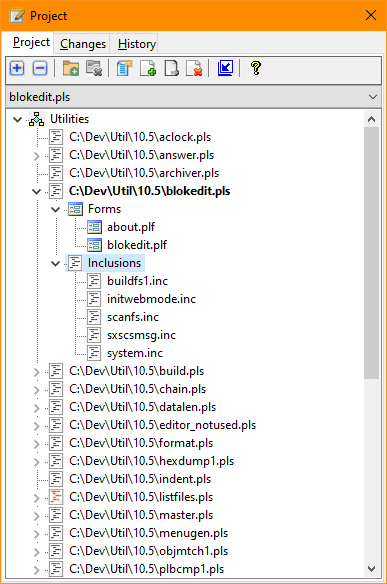
The Project Tab identifies the programs and components of the project and allows program selection and file editing. Icons associated with each file indicates it type or status.
|
|
|
Icons
|
As programs are added to the project and then compiled, they are scanned and any included source or form files are added to the list. The resulting display lists all the files that make up the program. Files that are located in the default project source folder and the Sunbelt runtime inclusion files (plbequ.inc, plbmeth.inc, etc.) are shown without the path. Files in other folders, include the path with the name. Placing the mouse cursor over a file will show the complete filename with the path.
The source files are presented in a hierarchial format. Clicking on the chevron right (>) adjacent to a file name will expand the list of included files. Clicking on the chevron down (V) will collapse the list. Some system configurations may show the chevrons and plus (+) and minus (-) signs.
Double clicking a file in the Project Tab will launch the appropriate editor for the file based upon the file extension. The editor for each file type is configured in the Tools/IDE Options dialog on the Extensions tab. By default, form files will be opened by the Sunbelt Form Designer and source files (.PLS, .INC, .DBS) are modified using the IDE Studio's source editor. Actions for other file extensions may also be defined on the Extentions tab.
Right clicking on the Project Tab tree will display a shortcut menu. This menu allows items to be quickly added and removed from the project. Other menu functions allow for the execution or debugging of the selected project item.
A toolbar at the top of the Project Tab provides access to functions often used when working with the project files.
A selection box beneath the project toolbar allows quick selection of the currently selected program. The selected program is the program that will be built, debugged, or used by other IDE functions by default. It is also the program used by the label selection combobox in the toolbar.
Items in the Project map are grouped by Forms and Inclusion files by default, The IDE Behavior page of the Options dialog (Tools/Options) allows grouping file by their extension or in the same order as previous version of SunIDE (no grouping just alphabetical sequence).
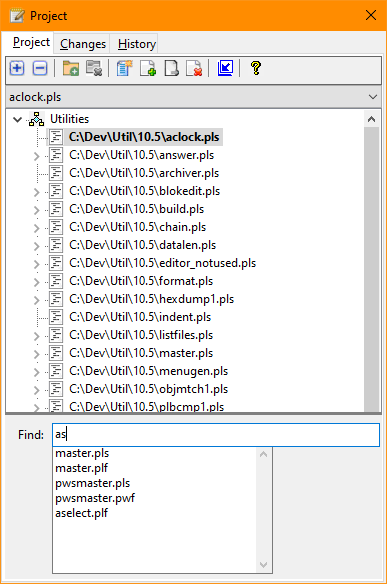
The Project tab also includes a Find feature to aid in locating inclusions or forms in large programs. The Find section of the Project Tab is made visible using an option on the Tools/Options Behavior tab. After selecting a program, simply enter two or more characters in the find input box and matching files will be listed. Clicking a file shown in the matching files list will highlight the file in the project file tree.


 |