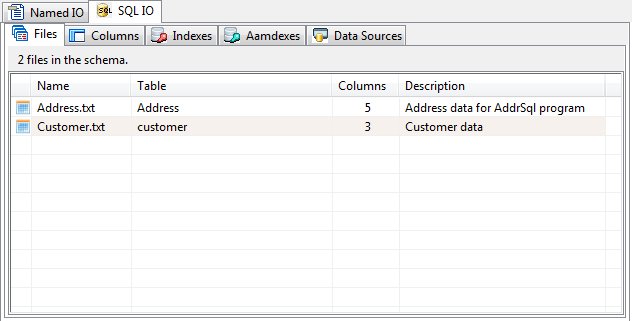
The Files Panel (SQLIO)
Within a Sunbelt SQLIO Schema database a required table named "sun_sqlio_file" must exist. The SchemaEditor exposes this table using the Files panel. This table contains data that gives an identification number and name for files. The names specified in this table are not case sensitive. A PLB program can specify a file name in an OPEN or PREPARE instruction. The file variable is then associated with the column data to perform file IO operations. The following column names are defined in the 'sun_sqlio_file' table and maintained by this utility:
|
Column |
Use |
|
id |
This column is an integer unique row identification value. |
|
file_name |
This column contains contains the PLB FILE file name as specified in a PLB OPEN instruction. |
|
table_name |
This text column that contains the associated relational database table name. If not provided, the default will be the value from the name column with the 4 characters '.', '/', '\', and ':' converted to the '_' |
|
description |
This column contains text that describes the schema file that has been specified. The SQL data type for this column is 'text'. |
File Addition
To add a file to the database, select "Add" from the SQL Files menu or right click on the Files panel and choose "Add". The File Editor will then be displayed.
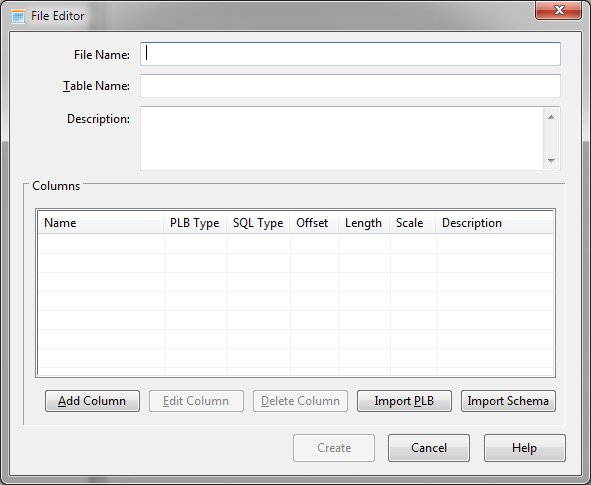
Typically, enter a file name and click to the "Add Column" to invoke the column editor and define the columns required in the file.
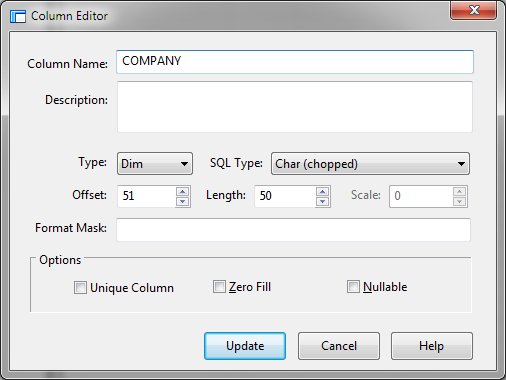
You may add as many columns as needed. Once all columns have been defined, click the "Close" button to return to the file editor.
If you have PL/B source statements that define the columns, you may use another method to quickly define the file's columns. Clicking the "Import PLB" button presents a dialog as follows:
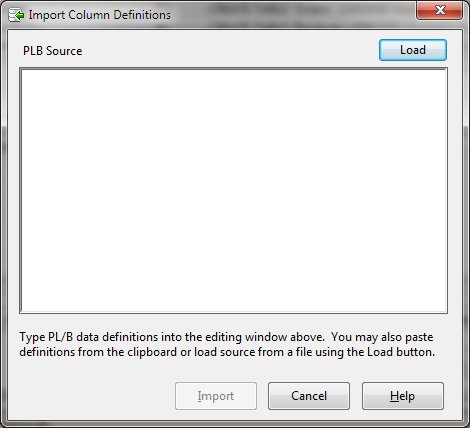
You can type PLB data definition statements (Dims, Forms, Integers, and Inits) into the edit window. Alternatively, you can paste copied source statements into the window. Finally, you can click the "Load" button and select a file containing source statements. Once the statements are in the source window, click "Import" to convert the data definitions to column definitions.
Another alternative for defining columns is to import the definitions from a schema file defined for use with Sunbelt ODBC product. By clicking "Import Schema" from the view editor, you may select the desired schema file and the following dialog is displayed:
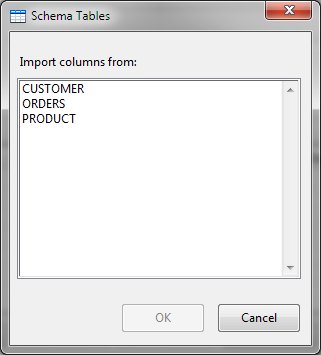
After selecting the table as defined in the schema file, the columns will be added to file definition.
After columns have been defined, the File Editor allows columns to be edited and deleted before the view is actually created. Once the file name and at least one column have been defined, click "Create" to make the file definition.
Edit File
The Edit File function allows the user to alter a file's name or description. Once selected, the following dialog appears:
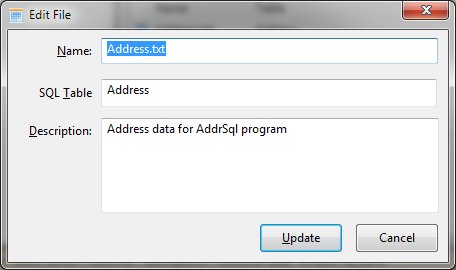
Delete File
The Delete File function removes the file and all associated columns from the schema database. The Delete functions within the SchemaEditor utility all support multiple selection.


 |