Listview Attribute Editor
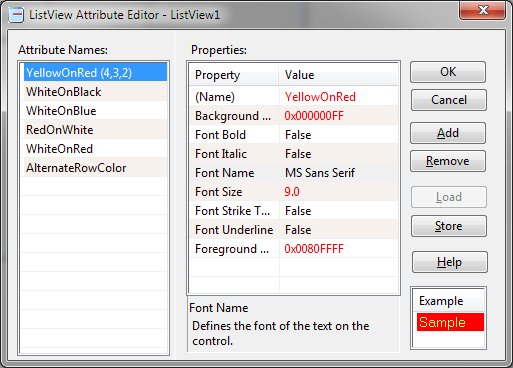
The Listview Attribute Editor allows maintenance of attributes within a listview. The editor consists
of two lists, seven buttons and a sample display.
The edit window may be resized and a splitter is available to allow resizing the attribute names list.
-
Editor Lists
-
The list on the left side of the editor shows any defined attributess. The list on right shows the selected
attribute's properties. The selected attribute is highlighted in the left hand list titled "Attribute
Names" and may be changed by clicking the desired attribute.
-
OK
-
The OK button signals that modifications to the listview are complete and the listview is updated. The
editor is then closed.
-
Cancel
-
The Cancel button indicates that any modifications to the listview should be discarded and the editor
closed.
-
Add
-
The Add button inserts a new attribute into the listview. The attribute name defaults to Attribute{nn}
where {nn} is a sequential value.
-
Remove
-
The Remove button deletes the selected attribute from the listview.
-
Load
-
The Load button allows selection of a previously saved set of column attributes. The Load/Save feature
allows the definition of a set of attributes that can then be used in multiple forms promoting consistency
and speeding form creation. Note that upon selecting the Load function, any previously defined listview
attributes are removed before the new attributes are added.
-
Store
-
The Store button saves the current listview attribute definitions. Once selected, the user is prompted
for a unique name to identify the definition set. The listview attribute definitions are then saved for
future use in other forms.
-
Help
-
Clicking the Help button displays this page.
-
Example
-
The example listview shows the formatting of the currently selected attribute.
Note the following:
1. Attributes are Designer
only properties and are not accessible using the GETPROP or SETPROP instructions.
2. The Designer will
add an attribute column if the Attribute Column property is not set to TRUE and attributes are defined.
3. The Designer will
create the following functions for each LISTVIEW that has defined attributes. Each function's name will
be composed of the LISTVIEW name follow by an underscore (_) and a descriptive suffix. Row and column
values are zero based.
-
{listview}_GetAttributeNames using {combobox}
-
Initializes the specified combobox with the defined attribute names.
-
{listview}_GetAttributeValue giving {value} using {attribute name}
-
Returns the value string associated with the specified attribute.
-
{listview}_SetListviewAttributes using {attribute name}
-
Initializes each row in the listview with the attribute specified. Existing column attributes are preserved.
-
{listview}_SetRowAttributes using {row},{attribute name}
-
Initializes a single row with the attribute specified. Existing column attributes are preserved.
-
{listview}_SetColumnAttributes using {column},{attribute name}
-
Initializes a single column with the attribute specified. Existing column attributes are lost.
-
{listview}_SetCellAttribute using {startrow},{startcolumn},{endrow},{endcolumn},{attribute name}
-
Applies the specified attribute to a range of cells.
-
{listview}_SetAlternatingRowAttributes using {attribute name}
-
Applies the specified attribute to the odd numbered rows of the listview. Existing column attributes
are preserved.
-
{listview}_SetAlternatingColumnAttributes using {attribute name}
-
Applies the specified attribute to the odd numbered columns. Existing column attributes are lost.
-
4. It is the user's
responsibility to call the attribute functions at the appropriate point within the program code. No automatic
calling is performed.
5. The routines set
the OVER flag to indicate a problem with the parameters.
6. User's may create
additional functions using the stored attributes as desired but should employ the GetAttributeValue function
rather than rely on any current attribute value property. This ensures that code will continue to execute
properly if the attibute definitions change.


