Attaching Event Code
The code you attach to a form or control is called an event procedure. Each form and control has a defined set of events that it may recognize. You attach event procedures only for events to which you want a form or control to respond.
To attach an event procedure to a form:
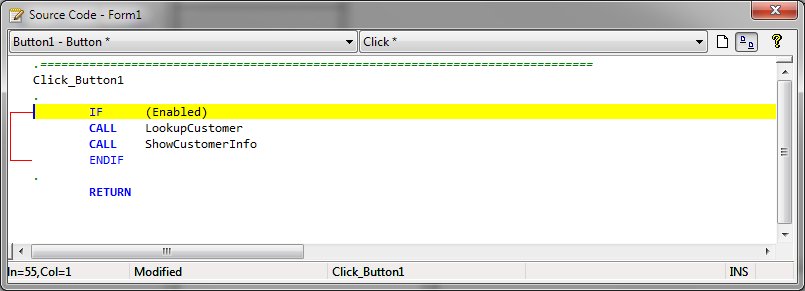
Double-click a blank part of the form to open the form's Code window. You may want to Lock Controls using the Format menu selection or by clicking the Lock toolbar button before double clicking to avoid any accidental movement of the control.
Once the double-click is complete, the Code Window will open and the selected object will be displayed in the Objects combobox.
If the object already has code in place for one of its events, that event is selected in the Events combobox and the source code is positioned to the event procedure.
If no event code exist for the object, the object's default event is selected and an empty event routine is added to the source window. The cursor is positioned to the point where code should be added. The empty event routine is created based on the Code Template defined in the Designer options.
To attach code to a control:
1. Double-click the control.
2. In the Event box, select the event to which you want to attach code.
3. Enter your PL/B code.
4. Repeat steps 2 and 3 as necessary to attach additional event procedures to the item.
Note: When attaching an event procedure, you may also select a form or control from the Object box in the Code window. The information displayed in the Event box then changes to reflect the events for the object you have selected. Text preceded by an asterisk indicates events for which you have written code.
Property Window
The Properties Window also shows the currently registered events. By clicking the lightning bolt icon in the Property Window toolbar, a list of events for the selected object are shown. Any event for which code exists will show the event procedure label in the Value column.
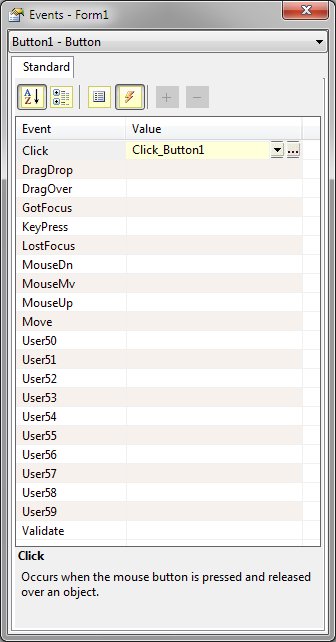
Attaching events to objects
To register an event and write event routine code using the Event list, click the dialog button (...) in the Value column along side the event desired.
If you wish to attach an event to an existing routine within the form, use the dropdown button and select the event routine label.
If you wish to attach an event to some externally defined routine, simply type in the name of that routine. No checking is done for the existence of the label entered. If that value entered is not available when the form is compiled, an error will result.
The Object Name in the code window combobox will indicate an associated routine by showing an asterisk (*) following the object name.
The Event combobox in the code window will indicate an associated form routine by showing an asterisk following the event name. If the event is registered to a label outside of the form, the name will be followed by a plus (+) sign.


 |