Import ODBC (Tables Menu)
DBExplorer can export data to an XML format file. Upon selection of this function, a form is displayed
and the export specifications may be defined.
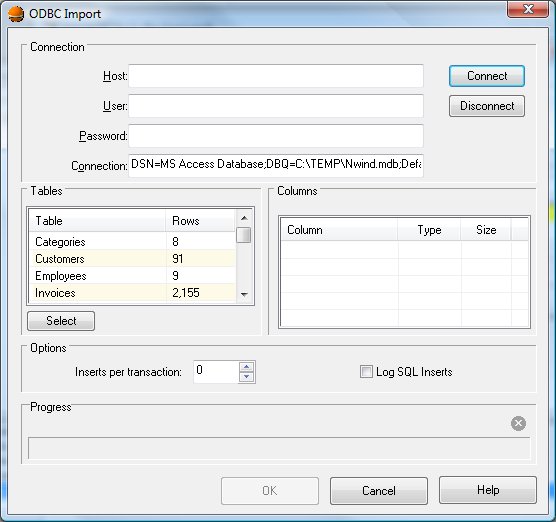
Import Dialog Items
-
Host
-
The name of the host for the ODBC connection.
-
User
-
The user name required to make the ODBC connection.
-
Password
-
The password required to make the ODBC connection.
-
Connection
-
A valid ODBC connection string as defined by the ODBC source.
-
Connect
-
Makes the connection to the specified ODBC server. If the above fields are blank, a Windows dialog is
opened allowing selection of the connection from the available ODBC servers.
-
Disconnect
-
Terminates the current ODBC connection allowing connection to another source.
-
Tables
-
A list of tables available from the current ODBC connection. A table may be selected by double clicking
the name or by clicking the name and then clicking the Select button.
-
Columns
-
Once a table is selected, the columns section lists all available columns. Specific columns may be included
in the imported data.
-
Inserts per transaction
-
The database inserts are batched into a transaction during the import process for improved performance.
Adjusting this value from its default of zero (0) will decrease performance but offer some protection
in the event of a failure.
-
Log SQL inserts
-
This option causes the individual insert statements to be logged to the message window. Setting this
option will degrade the performance of the import.
-
Progress
-
The progress section shows the record count and a progress bar. A stop button allows the import to be
aborted.


