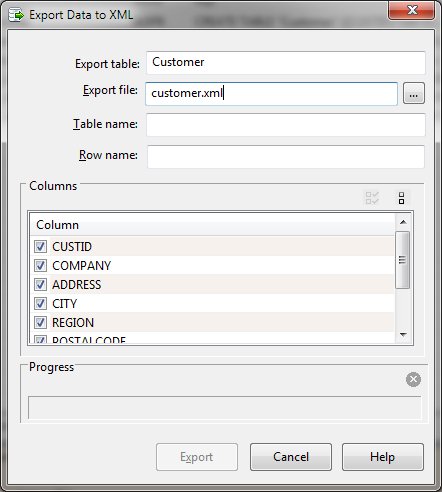
Export XML File (Tables Menu)
DBExplorer can export data to a delimited or CSV file. Upon selection of this function, a form is displayed and the export specifications may be defined.
Export Dialog Items
The exported data will be in the following format where "TableName" is the specified table name and "RowName" is the specified row name.
<?xml version="1.0" encoding="UTF-8"?>
<TableName>
<RowName>
<CUSTID>2</CUSTID>
<COMPANY>Company2</COMPANY>
<ADDRESS>Address2</ADDRESS>
<CITY>City2</CITY>
<REGION>Region2</REGION>
<POSTALCODE>PostalCode2</POSTALCODE>
<COUNTRY>Country2</COUNTRY>
<PHONE>Phone2</PHONE>
</RowName>
<RowName>
<CUSTID>3</CUSTID>
<COMPANY>Company3</COMPANY>
<ADDRESS>7577188</ADDRESS>
<CITY>USA</CITY>
<REGION>123-567-9012</REGION>
</RowName>
...
</TableName>
When exporting from the Data or SQL tab, only the selected rows are output. Use Select All before exporting to choose all rows of data shown. The Export Data function when other DBExplorer tabs are selected exports all rows in the selected table.


 |