The SchemaEditor Utility
Sunbelt's SchemaEditor is a graphical utility program that allows a user to manage Sunbelt Schema defintions in a schema database. Both Named IO and SQLIO use a similar style database but the table defintions are not the same. A Sunbelt Named IO Schema database must contain internal tables named 'sun_views', 'sun_columns', and 'sun_databases'. A Sunbelt SQLIO Schema database must contain internal tables named 'sun_sqlio_afile', 'sun_sql_io_alias', 'sun_sqlio_columns', 'sun_sqlio_databases', 'sun_sqlio_file', 'sun_sqlio_ifile', and 'sun_sqlio_version'. The data inserted into these tables is used by the Sunbelt products to provide enhanced functionality that includes PLB IO using column names and record filtering and the SQLIO processing. The SchemaEditor is designed to aid in the creation and maintenance of such a database.
With the SchemaEditor, a user can:
Create a new schema database for Named IO or SQLIO
Export the database to an SQL text file or an XML format file
Create, copy, rename, and delete views
Insert, edit, and delete columns within views
Add, edit, or remove extension databases
Test views and filters
Graphical Layout
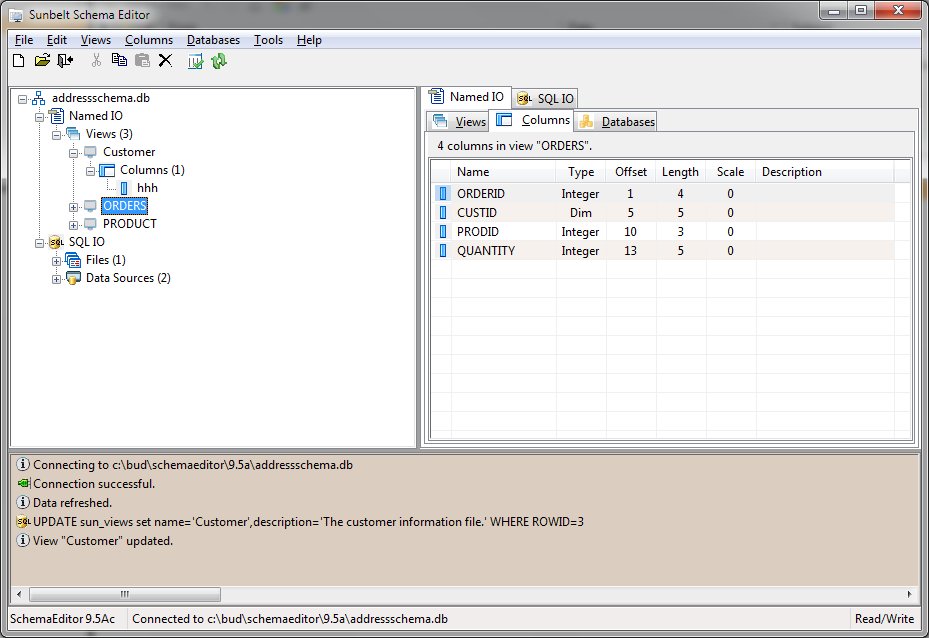
The SchemaEditor presents information using a hierarchial tree structure on the left side of the screen and a tabbed dialog of categorized information on the right. Upon opening a schema database, the structure of view, columns, and databases are shown in the hierarchial tree.
The example below shows a schema database named "sunschema.db" and its internal structure of views, columns, and databases.
In the panel on the left is the hierarchial display of the structure. The right panel shows the tabbed dialog with pages for the views, columns, and databases. The bottom panel displays informational messages and shows commands executed by the SchemaEditor. Each panel may be sized by selecting the splitter between the panels and moving in the desired direction.
The SchemaEditor operates in either the Named IO or the SQLIO mode. The mode is selectable by using the upper tab control in the right pane.
Across the top, a menu provides access to many of the SchemaEditor's functions. A toolbar beneath the menu allows quick selection of frequently used menu functions. Many menu functions also have a quick select key specification. The quick select keys are shown to the right of the item within the menu.
Also available are shortcut menus. These menus are shown when the right mouse is clicked on a tree or panel item.
And finally, program help is available either by clicking the F1 key or by using one of the designated Help buttons on the various input forms.


 |