
Toolbox
The Toolbox displays the PL/B controls available for use in your form. You choose a tool by clicking it.
To open the Toolbox, choose Tools from the Window menu, press the F5 key or click the Toolbox toolbar button:
To close the Toolbox, click the Toolbox's close button.
Toolbox Styles
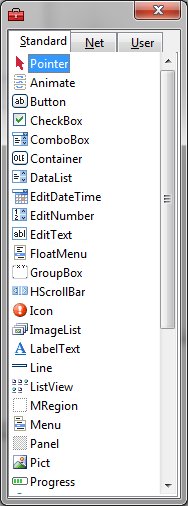
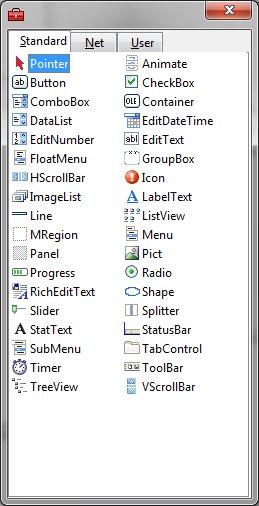
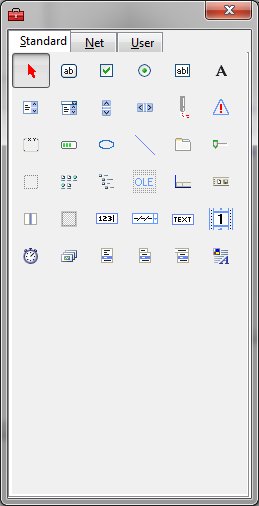
The Toolbox contains a set of basic tools. The toolbox may be formatted as a toolbar with buttons or as a listview with icons. The toolbox style is selected in the Tools menu Options function on the Window page. The toolbar format buttons are:
|
|
Pointer |
This is the only item in the Toolbox that does not draw an object. Use it to size or move an object after it's been drawn on a form. |
|
|
ANIMATE |
Creates a animation object to enhance the displayed information. |
|
|
BUTTON |
Creates a button the user may choose to carry out a command. |
|
|
CHECKBOX |
Creates a box that the user may easily choose to indicate if something is true or false, or to display multiple choices when the user may choose more than one. |
|
|
COMBOBOX |
Creates a combination list box and text box. The user may either choose an item from the list or enter a value in the text box. |
|
|
RADIO |
Creates a radio button to allow the user to specify a choice. This control may be used alone or in a group from which the user may choose only one button. |
|
|
EDITTEXT |
Create a text area allowing the user to either enter or change a value. |
|
|
EDITNUMBER |
Create a text area allowing the user to either enter or change a numeric value. |
|
|
EDITDATETIME |
Create a control that allows input or selection of a date. |
|
|
STATTEXT |
Creates text that you do not want the user to change, such as a caption under a graphic. |
|
|
DATALIST |
Display a list of items from which the user may choose one. The list may be scrolled if it has more items than may be displayed at one time. |
|
|
VSCROLLBAR |
Creates a graphical tool for quickly navigating through a long list of items or a large amount of information, for indicating the current position on a scale, or as an input device or indicator of speed or quantity |
|
|
HSCROLLBAR |
Creates a graphical tool for quickly navigating through a long list of items or a large amount of information, for indicating the current position on a scale, or as an input device or indicator of speed or quantity. |
|
|
PICT |
Creates a picture object to enhance the form. |
|
|
ICON |
Allows an icon to be added to the form. |
|
|
GROUPBOX |
Creates a graphical or functional grouping for controls. To group controls, draw the frame first, draw controls inside the frame. |
|
|
PROGRESS |
Creates a graphical progress bar for notifying the user of a process's status. |
|
|
SHAPE |
Draws a variety of shapes on your form at design time. You may choose a rectangle, rounded rectangle, square, rounded square, oval, or circle. |
|
|
LINE |
Create a line object that alters the form's visual effect. |
|
|
TABCONTROL |
Creates a tabbed control object allowing data to be grouped under a common area. |
|
|
SLIDER |
Provides a graphical tool for quickly navigating through a long list of items or a large amount of information, for indicating the current position on a scale, or as an input device or indicator of speed or quantity. |
|
|
MREGION |
Defines a region of the screen that has special mouse handling. |
|
|
LISTVIEW |
Allows items to be place into lists. |
|
|
TREEVIEW |
Creates a hierarchical view of data. |
|
|
CONTAINER |
Add a container for external objects. |
|
|
STATUSBAR |
Create a status bar comprised of panels on the bottom of a window. |
|
|
TOOLBAR |
Define a tool bar for user quick selection of functions. |
|
|
SPLITTER |
Add a splitter to dynamically adjust windows. |
|
|
PANEL |
Create a panel on which other objects can be placed. |
|
|
LABELTEXT |
Add a label to a form. |
|
|
ANIMATE |
Create an animated object. |
|
|
TIMER |
Install a background timer. |
|
|
IMAGELIST |
Define a list of images that may then be referenced by other objects. |
|
|
FLOATMENU |
Add a floating menu to a form. |
|
|
MENU |
Create a menu for a form. |
|
|
SUBMENU |
Add a submenu to an existing menu. |
|
|
RICHEDITTEXT |
Create a richedittext object. |
Note the following:
1. When you select the pointer, you are able only to size or move an object. When you select any other tool, you may use it only to draw new objects. Once you draw an object, the pointer is automatically selected again.
2. Objects may be placed on form using a number of drawing techniques.
 |