Statusbar Panel Editor
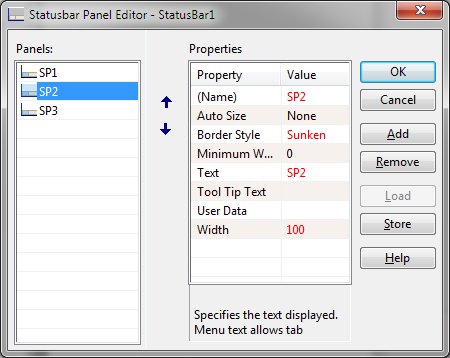
The Statusbar Panel Editor allows maintenance of panels associated with a statusbar. The editor consists
of two lists and seven buttons.
The edit window may be resized and a splitter is available to allow resizing the panels list.
-
Editor Lists
-
The list on the left side of the editor shows any defined panels. The list on right shows the selected
panel's properties. The selected panel is highlighted in the left hand list titled "Panels"
and may be changed by clicking the desired panel.
-
OK
-
The OK button signals that modifications to the statusbar are complete and the statusbar is updated.
The editor is then closed.
-
Cancel
-
The Cancel button indicates that any modifications to the statusbar should be discarded and the editor
closed.
-
Add
-
The Add button inserts a new panel into the statusbar. The panel name defaults to SP{nn} where {nn} is
a sequential value.
-
Remove
-
The Remove button deletes the selected panel from the statusbar.
-
Load
-
The Load button allows selection of a previously saved set of panel definitions. The Load/Save feature
allows the definition of a set of panels that can then be used in multiple forms promoting consistency
and speeding form creation Note that upon selecting the Load function, any previously defined statusbar
pandles are removed before the new panels are added.
-
Store
-
The Store button saves the current statusbar panel definitions. Once selected, the user is prompted for
a unique name to identify the definition set. The statusbar panels are then saved for future use in other
forms.
-
Help
-
The Help button displays this page in a new window.
-
Up and Down
-
The Up and Down Arrow buttons located between the two lists of the editor allow changing of the position
of the selected panel.


