Export Database (File Menu)
The database Export Database function generates either an SQL or an XML file of the database contents.
Both formats present a dialog prior to the actual export process.
SQL Database Export
The SQL format creates a text file that contains SQL statements that can be used to restore a database
or transfer the structure and contents of a database into another database.
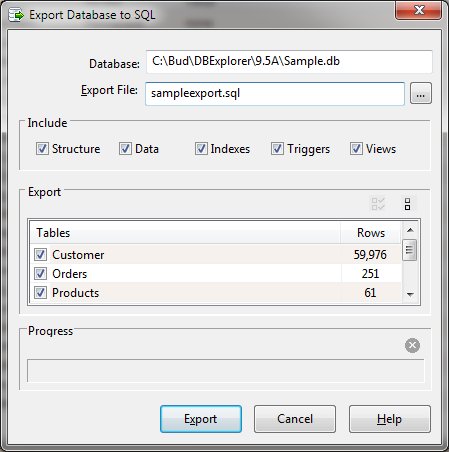
SQL Database Export Dialog Items
-
Database
-
The currently active database name is displayed for confirmation.
-
Export File
-
The required name of the SQL file to be generated. A browse button allows easy navigation and file name
specification.
-
Include
-
The checkboxes in the Include section control the SQL output by the process. The Structure option enables
the table and column creation statements. The Data option enables the creation of Insert statements for
all data in the selected tables. Indexes, Triggers, and Views control the output of creation statements
for the specified database component.
-
Export Tables
-
This list controls the tables to be output by the export process. Checked tables will be output. Buttons
are available to set or clear all the tables.
-
Progress
-
The progress area will display information as the export operation proceeds. The name of the table is
displayed as it is exported and a bar graph is displayed giving a visual indication of the progress.
To Cancel an export operation, click the abort button (red "X").
Once the export is complete, the file may be archived for security or used in another database product
to reconstitute the structure and data.
XML Database Export
The XML format creates a text file that contains XML formatted data that can be accessed by other applications.
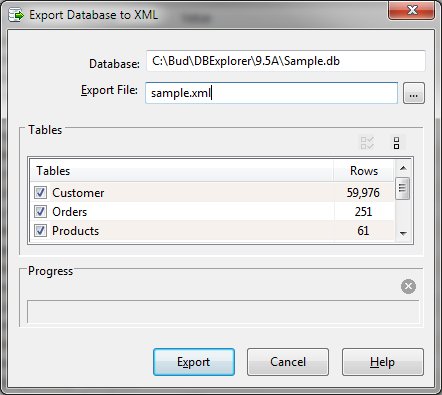
XML Database Export Dialog Items
-
Database
-
The currently active database name is displayed for confirmation.
-
Export File
-
The required name of the XML file to be generated. A browse button allows easy navigation and file name
specification.
-
Export Tables
-
This list controls the tables to be output by the export process. Checked tables will be output. Buttons
are available to set or clear all the tables.
-
Progress
-
The progress area will display information as the export operation proceeds. The name of the table is
displayed as it is exported and a bar graph is displayed giving a visual indication of the progress.
To Cancel an export operation, click the abort button (red "X").
Once the export is complete, the file may be archived for security or used in other programs.


